
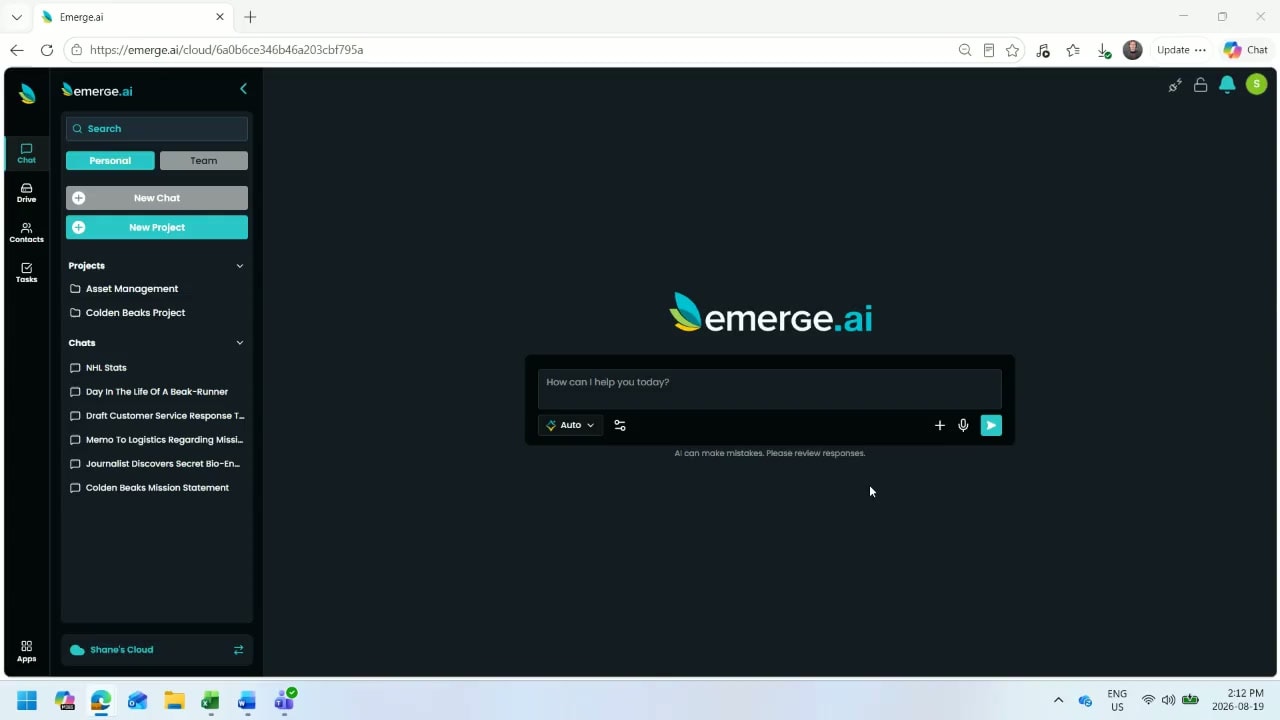
If you use Emerge.ai regularly, one of the simplest ways to get better results is to set up Instructions.
Instructions are saved guidelines that shape how the AI responds. Instead of re-explaining who you are, what you do, or how you want something written every time, you can save that context once and apply it where needed.
What are Instructions?
Instructions are reusable guidance that tells Emerge.ai how to behave in a given chat or project. They help the AI understand your preferences, your context, and the kind of output you want.
- You can set Instructions at two levels:
- Chat level — applies only to one conversation
- Project level — applies to every chat in that project
That means you can keep things flexible for one-off tasks, or build consistent behavior across an entire workflow.
Why Instructions matter
Without Instructions, every new chat starts with a clean slate. The AI is still ready to help, but it won’t automatically know your specific preferences or working style.
So each time you start fresh, you may need to manually reintroduce your PREP:
- Persona
- Request
- Examples
- Parameters
That repetition takes time, and it can also lead to inconsistency.
- With Instructions, Emerge.ai can already understand things like:
- Your role
- Your organization
- Your tone of voice
- Your formatting preferences
- Your common tasks
The result is faster setup, more relevant responses, and a smoother experience overall.
How to set up Instructions in Emerge.ai
While the exact interface may vary depending on where you’re working, the process is generally straightforward.
1. Open the chat or project you want to configure
Decide whether you want your Instructions to apply to a single chat or to an entire project.
Choose chat-level Instructions if you want guidance for one conversation only.
Choose project-level Instructions to apply the same guidance across multiple chats.
2. Add your background context
Start with the essentials:
Who you are
What your organization does
What role you want the AI to play
This gives the AI the context it needs to respond more appropriately from the start.
3. Define your preferences
Next, include the details that shape the style and structure of the output:
- Preferred tone
- Formatting preferences
- Level of detail
- Any terminology the AI should use
- For example, you might want responses to be:
- Friendly and professional
- Short and action-oriented
- Written in bullet points
- Structured for internal team use
4. Explain your common use cases
Tell Emerge.ai what you typically use it for.
- This could include:
- Drafting emails
- Summarizing meetings
- Writing marketing copy
- Creating project plans
- Reworking content in a specific voice
The more the AI understands your recurring tasks, the better it can support you.
5. Add examples if needed
If you have a preferred writing style or format, examples can make your Instructions even more effective. Showing the AI what “good” looks like often leads to more consistent output than description alone.
What makes good Instructions?
- Strong Instructions are clear, practical, and specific. A helpful set usually includes:
- Who you are
What role you want the AI to play
What your organization does
Your preferred tone
How you like outputs formatted
What you typically use Emerge.ai for
Any terminology or context it should know
Think of Instructions as a short briefing for your AI assistant. The better the briefing, the better the first draft.
A simple example of effective Instructions
Here’s the kind of guidance that can work well:
I’m a marketing manager at a B2B software company. Write in a clear, confident, and friendly tone. Keep responses concise and structured with headings and bullet points when helpful. Use UK English. Focus on practical, actionable outputs. I often use Emerge.ai for campaign copy, internal summaries, and draft emails.
This gives the AI a strong foundation without overwhelming it.
The bottom line
Instructions reduce repetition, improve consistency, and help Emerge.ai generate more useful outputs from the start.
Instead of starting from scratch every time, you can give the AI a stable context that carries over into your work. That means less setup, fewer corrections, and better results across chats and projects.